

What are the ports on a MacBook Pro for? The MacBook Pro has multiple connector options with varying functions and speeds for data transfer. You can choose which external monitor or gaming device is best for your MacBook Pro laptop if you are familiar with the ports on the MacBook Pro.
You are aware that figuring out which cable to use to connect your MacBook Pro and monitor is the most difficult aspect of setting up a display. The kind of monitor and MacBook model you have will determine what kind of cable you need.
Over the years, Apple has introduced a number of distinct port types, and your Mac desktop or MacBook Pro may include any of the following: Thunderbolt 3, 4, 2, HDMI, USB-C, or Mini Display. Below, we assist you in determining which port you have.
Thunderbolt 3 (and USB-C) ports on MacBook Pro
Thunderbolt 3 is a USB-C version that has been enhanced, offering 40Gbps of speed as opposed to 5 to 10GBps for USB-C.
You can use a Thunderbolt 3 or any USB C-equipped display with your Mac because the connection looks and functions precisely like USB-C and Thunderbolt 3 supports USB-C. Additionally, you can connect your Mac to your monitor using any USB-C connector.
Macs with a Thunderbolt 3 (USB-C) port include:
- 13in MacBook Pro (2020)
- MacBook Air (2020)
- 24in iMac (2021)
- Mac mini M1 (2020)
Additionally, Macs made after the end of 2016 will include Thunderbolt 3.
HDMI ports on MacBook Pro models

A few Macs come with an HDMI connector out of the box, such as the 2020 Mac mini with M1 chip and the 14- and 16-inch MacBook Pro models that were released in 2021. Since TVs frequently have HDMI connectors, Macs are a popular option for people putting up a media center PC.
Macs with an HDMI port include:
- 16in MacBook Pro (2021)
- 14in MacBook Pro (2021)
- Mac Studio (2022)
- Mac mini
USB 4 ports on MacBook Pro models
Thunderbolt 4 devices support USB 4, and there isn’t much of a difference between Thunderbolt 4 and USB 4. Thunderbolt 4 is capable of supporting up to 40Gbps of bandwidth at all times, while USB 4 can only support up to 20Gbps. Thunderbolt 4 can support two 4K screens, however a USB 4 port can only support one.
- 13in MacBook Pro (2020)
- 14in MacBook Pro (2021)
- 16in MacBook Pro (2021)
- Mac mini M1 (2020)
- MacBook Air (2020)
- 24in iMac (2021)
- Mac Studio (2022)
Older Mac mini models and the MacBook Pro from mid-2012 to mid-2015 both had HDMI ports.
Thunderbolt 4 (and USB-C) ports on MacBook Pro
Similar to Thunderbolt 3, Thunderbolt 4 is found in some contemporary Macs from Apple and shares a port with USB-C (and USB 4, which we will talk about next). The port is fully backwards compatible and has the same appearance as the Thunderbolt 3 port (above).
Thunderbolt 4 and Thunderbolt 3 are actually not that dissimilar from one another. The primary motivation behind the existence of Thunderbolt 4 is the incapacity of certain PC notebooks to accommodate Thunderbolt 3’s full 40Gbps bandwidth.
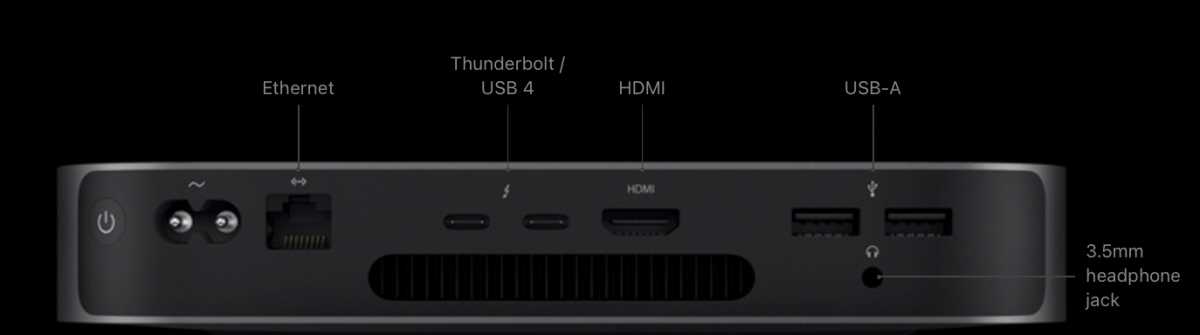
Apple
However, there are a few advantages to Thunderbolt 4 for Mac users: Two 4K monitors or one 8K display can be supported by each Thunderbolt 4 port.
Macs with a Thunderbolt 4 port include:
- 14in MacBook Pro (2021)
- 16in MacBook Pro (2021)
- Mac Studio (2022)
Thunderbolt 1 or 2
Around 2011, Thunderbolt initially debuted on Macs. A year later, Apple unveiled Thunderbolt 2. The Thunderbolt port is backwards-compatible with Mini DisplayPort (below) and shares the same appearance. Your Mac has a Thunderbolt port if you see a Thunderbolt icon in addition to what seems to be a Mini DisplayPort.
It is likely that your Mac, if it was purchased between 2011 and 2016, has Thunderbolt 1 or 2, not Mini DisplayPort, even though the two are interchangeable.
Mini DisplayPort

Apple made the announcement of Mini DisplayPort at the close of 2008. Mini DisplayPort monitors with VGA, DVI, or HDMI connections can be driven with an adaptor.
Where to locate ports on MacBook Pro?
We go over each choice below. After determining which port your Mac has, you need to check the port on your display. One more thing needs to be confirmed by you:
It is your responsibility to verify if the connector on the rear of your screen has male or female endpoints. For example, we had to make sure that the adaptor we purchased had male endpoints because the NEC MyltiSync E243WMI we utilized had a female connection.
HDMI
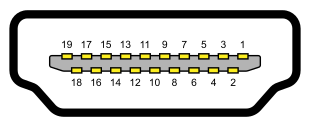
Audio on HDMI can have up to eight channels. Up to 8k and greater resolutions are supported with HDMI 2.1. The most prevalent connector on the rear of a TV is HDMI. Desire to utilize an 8K display?
As mentioned previously, some Macs come pre-installed with an HDMI port; in such cases, all you need is an HDMI to HDMI connection to link your Mac and monitor. You only need an adapter if your Mac lacks an HDMI connector.
Thunderbolt 4 or USB 4
Some monitors have Thunderbolt 4 docking capabilities, such as the Lenovo ThinkVision P27u-20. The appearance of this port and the Thunderbolt 3/USB-C port will be identical.
Thunderbolt 3, USB-C or USB 3
USB-C connectors are more common than Thunderbolt 3 ports on monitors, even though Thunderbolt is quicker and requires less power. Additionally, USB-equipped monitors are probably less expensive than Thunderbolt models. Occasionally, you may come across a USB 3 or USB 3.1 port—essentially the same port, but one that came before USB-C.
If your Mac has a USB-C port, you can connect the monitor to your computer using a USB-C connection because the Thunderbolt 3 and USB-C interfaces are the same.
Thunderbolt 1 or 2
Your monitor features a Thunderbolt 2 port, as shown above, if you bought the Apple Thunderbolt display, which was discontinued in 2016.
VGA
A three-row, 15-pin DE-15 connector is needed for a VGA connector. Analog signals are transmitted via VGA connections.
VGA was used in older CRT (Cathode Ray Tube) monitors, however flat screens can also use VGA by simply converting the analog signal from the VGA connector back to digital. The quality of the video may be lowered by this conversion between digital and analog. VGA can transmit only analog audio and HD video.

DVI
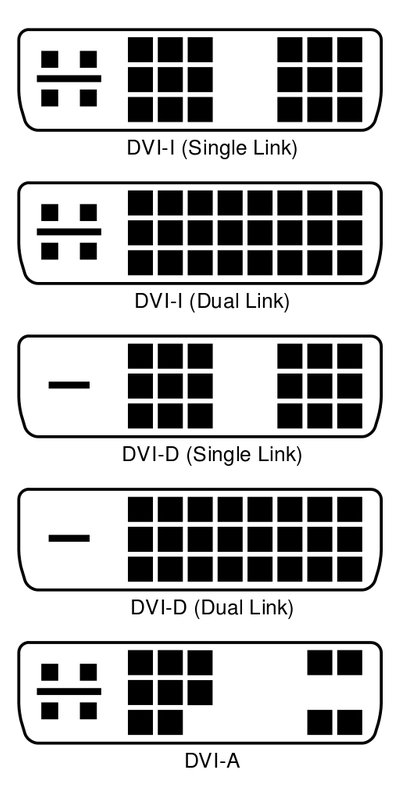
Since DVI is a digital transmission, it provides a higher quality than VGA. When comparing HD footage to VGA, you will notice a noticeable improvement.
A DVI connector can have up to 24 pins; however, several connectors with varying pin counts are in use depending on whether the connector is DVI-A, DVI-D, or DVI-I. Additionally, there is a long pin that might have four surrounding pins (earlier versions require these for audio).
Mini DisplayPort
As can be seen above, if you own an Apple LED Cinema Display (which was first released in 1999 and was later replaced by the Thunderbolt display in 2011), your display features a Mini DisplayPort connection.
How much is converting ports price for MacBook Pro?
If your Mac has a restricted number of ports and you would like to connect two more 4K displays, a dock will be helpful. You’ll also get additional ports with a dock, like Ethernet, USB, and card readers.
HDMI to HDMI display
As previously said, some Macs come with an HDMI connector, so you may use an HDMI cable—like this Belkin UltraHD High Speed 4K HDMI cable, which retails for $29.95 from Apple US or £29.95 from Apple US—to connect an HDMI monitor to your Mac.
USB-C/Thunderbolt 3 to USB-C display
If your display is compatible with Thunderbolt 3, we suggest using Apple’s USB-C/Thunderbolt 3 cable. In the Apple Stores of the UK and the US, it costs £39. A Thunderbolt 3/USB-C cable is available from Apple for £39 in the UK and $39 in the US.
USB-C/Thunderbolt to HDMI display
The Apple USB-C Digital AV Multiport Adapter (£75/$69) allows you to connect an HDMI monitor to a Mac that has Thunderbolt 3. To accomplish this, you will still require an additional HDMI-to-HDMI cable (like this Belkin model). Additionally, Apple offers a variety of HDMI adapters for sale on both the US and UK Apple Stores.
Our recommendation for an HDMI-compatible standard-sized monitor is the six-foot USB-C/Thunderbolt 3 to HDMI cable from Uni. ($17/£16.99)
USB-C to VGA display
You may connect to a VGA monitor or projector with Apple’s USB-C VGA Multiport Adapter. Since this is an analog connection, HDCP (High-bandwidth Digital Content Protection) content cannot be supported. HD movies available on the iTunes Store would fall under this category.
For £75 on the Apple UK shop or $69 on the Apple US store, you can purchase the USB-C VGA Multiport Adapter. Several VGA adapters are available from Apple (Apple UK or Apple US), such as the Belkin USB-C to VGA Adapter (£27.95 and $29.95) and the USB-C VGA Multiport Adapter (£75 and $69).
USB-C to DVI display
A USB-C to DVI adapter, such this Benfei USB-C to DVI cable (£12.99 on Amazon UK or $11.85 on Amazon US), is available on Amazon even though Apple does not sell one. Although we cannot verify its functionality, we presume it does as it states it is intended for the MacBook.
USB-C to Mini DisplayPort display
Amazon offers a USB-C to DVI adapter, such as the Benfei USB-C to DVI cable (£12.99 on Amazon UK or $11.85 on Amazon US), even though Apple does not sell one. While we are unable to verify its functionality, we infer that it is compatible with the MacBook.
Mini DisplayPort to HDMI display
Although Belkin’s 4K Mini DisplayPort to HDMI converter costs £34.95 on the Apple US Store and £29.95 on the Apple UK Store, Apple does not produce its own Mini DisplayPort to HDMI converter.
Thunderbolt 3 (USB-C) to Thunderbolt 2 Adapter
A new Mac can be connected to a Thunderbolt display using Apple’s Thunderbolt 3 (USB-C) to Thunderbolt 2 Adapter. The price is $49.50 in the Apple US Store and £49 in the Apple UK Store.
Which port has a faster speed?
Up to 40 gigabits per second of connection speed are possible with Thunderbolt 3. Although the latest MacBook Pro models feature Thunderbolt 3, it’s possible that you own accessories (keyboards, hard drives, etc.) that don’t support Thunderbolt. That’s alright, too.
On its own, USB-C is fairly quick, with transfer rates of up to 10 gigabits per second (USB 3.1 Gen 2). This implies that your files will still transfer quite quickly even if you’re utilizing an external hard disk with USB-C capability. This is excellent news for all the pictures and movies you’ve been shooting with your brand-new iPhone 7 Plus.
Editor’s Recommendations
- Best monitor with webcam for MacBook Pro on sale
- Apple 2024 MacBook Air 15-inch laptop with M3 chip 15.3-inch liquid retina display price
- Apple 2022 MacBook Air laptop with M2 chip 34.46 cm (13.6-inch) review
- iPad (10th Generation 256GB price in USA) – should you buy it?
- iPhone 14 Pro Max price in London UK 512GB
